
Short answer
myLearning is Canvas. Pasco County Schools runs Instructure's Canvas learning management system under the name myLearning, and students and staff reach it by signing in to MyPascoConnect and clicking the myLearning tile, which carries the district login through with no second password. Parents do not use the tile; they create a separate observer account at pasco.instructure.com/login/canvas with a pairing code from their student.
The naming
myLearning and Canvas are one thing
Students search for "Canvas", parents search for "my learning pasco", and teachers use both names in the same sentence. They are one platform. Once you know that, most confusing instructions make sense, because a Canvas guide written by Instructure applies to myLearning exactly as written.
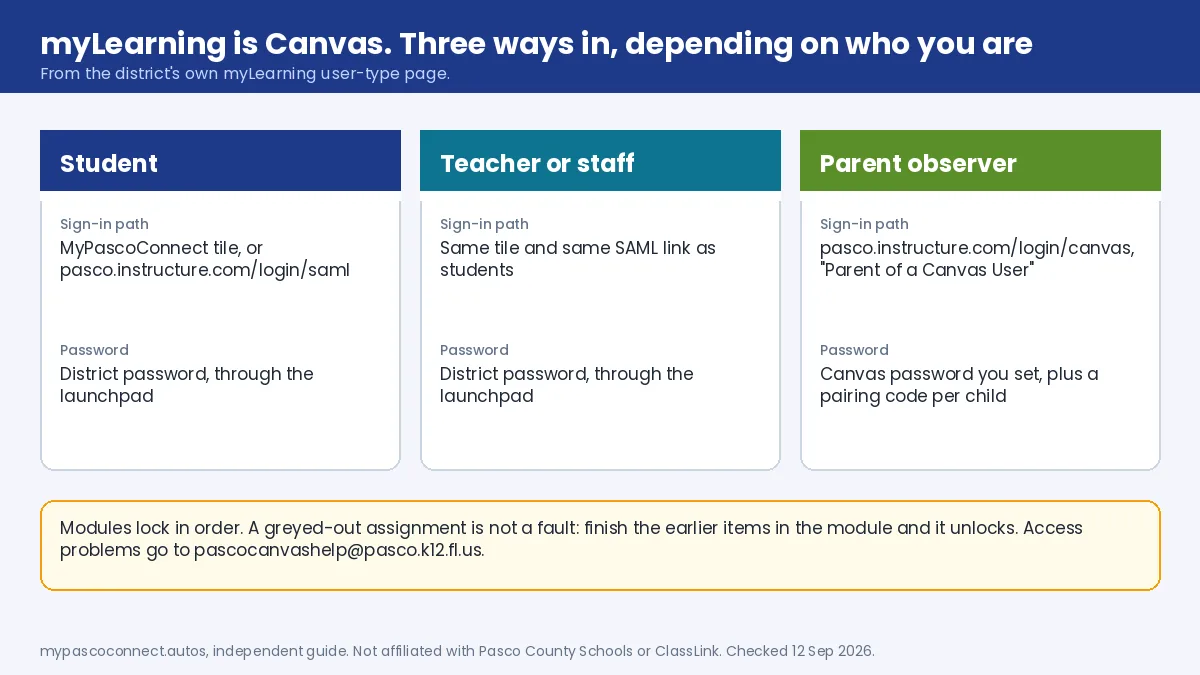
The district's own myLearning entry page at ryu.pasco.k12.fl.us makes the split explicit: students and staff are sent to pasco.instructure.com/login/saml, the single sign-on path that the launchpad tile uses, while parents and "all other users" (vendors, course observers) go to pasco.instructure.com/login/canvas with a Canvas-only password. Access problems go to pascocanvashelp@pasco.k12.fl.us.
| User | Sign-in path | Password |
|---|---|---|
| Student | MyPascoConnect tile, or pasco.instructure.com/login/saml | District password (via the launchpad) |
| Teacher or staff | Same as students | District password (via the launchpad) |
| Parent observer | pasco.instructure.com/login/canvas | Canvas password you set yourself, plus a pairing code per child |
Step by step
How to open myLearning from MyPascoConnect
Sign in to the launchpad
login.classlink.com/my/dsbpc with your district credentials. If that step fails, the student login guide covers it; Canvas cannot open until the launchpad does.
Click the myLearning tile
Canvas opens without a second sign-in, through the same SAML login that the district's myLearning user-type page sends students and staff to (pasco.instructure.com/login/saml). If it asks you to log in again, the handoff broke; test a private window.
Find your course on the Dashboard
Courses appear as cards. If one is missing, open All Courses at the bottom of the course list and click the star next to it; the Dashboard only shows favourited courses.
Open Modules and work in order
Modules is in the left-hand course navigation and is the table of contents for the course. Pasco eSchool's quick-start guide says to work through it in order, because later items stay locked until earlier ones are complete.
The one that catches everybody
Modules lock in order
This is the most common "Canvas is broken" report that isn't a fault at all. Pasco eSchool's quick-start guide says it directly: work through the Modules list in order, because otherwise Canvas will not let you continue. Modules have prerequisites, so item three does not unlock until items one and two are complete.
If a page, quiz or assignment appears greyed out or refuses to open, nothing is wrong. Scroll up, find the first incomplete item, finish it, and the rest unlocks. The Next button at the bottom of each page keeps you in sequence.
Where your pace chart lives
For eSchool and paced courses the pace chart is not on the course home page. It is under Grades in the left-hand course menu, and the print icon there saves it as a PDF, which is the practical way to keep a deadline schedule offline.
The visual guides are old but still right
Pasco eSchool publishes step-by-step visual login guides as PDFs in English and Spanish. They date from 2020 and the interface has shifted since, but the sequence is unchanged, and they suit families who would rather follow pictures than text.
Parents
How to create a myLearning parent observer account
An observer account shows the classroom (assignments, materials, announcements) and is separate from myStudent, which shows the official record. Pasco eSchool's parent observer page gives these three steps.
Student generates a pairing code
In Canvas the student goes to Account, then Settings, then "Pair with Observer" on the right side of the page, and writes down the code exactly as shown.
Parent opens the Canvas parent login
Go to pasco.instructure.com/login/canvas and click "Parent of a Canvas User" in the top-right corner. This is the parent path from the district's myLearning user-type page; students and staff use a different SAML link.
Register with the pairing code
Complete the form and enter the student pairing code. To add another child later, open Observing in your account and choose +Student with that child's own code.
Source: Pasco eSchool, Parent Observer myLearning (Canvas)
Rule of thumb: grades and attendance, myStudent. Assignments and course materials, myLearning observer. Finishing one does not create the other.
Support
When Canvas itself is the problem
A white Help link sits at the bottom-left inside Canvas, and a grey Help link at the very bottom of the Canvas login screen when you cannot get in. Either one offers Report a Problem, which files the ticket from the page where the failure happened. Include the error text; a ticket that quotes the message gets a faster answer than "Canvas won't load".
One security note families ask about. In the spring 2026 Instructure breach, attackers accessed Canvas data between 25 April and early May 2026; Pasco County Schools emailed families, Instructure said no evidence of exposed passwords was found, and Canvas was restored within days. MyPascoConnect itself was not breached. If your launchpad password is reused anywhere else, change it there.
Ready to sign in?
This guide is the how-to. The district portal is where you actually sign in, and the only place you should ever type your password.
Open the official portal ↗