
Short answer
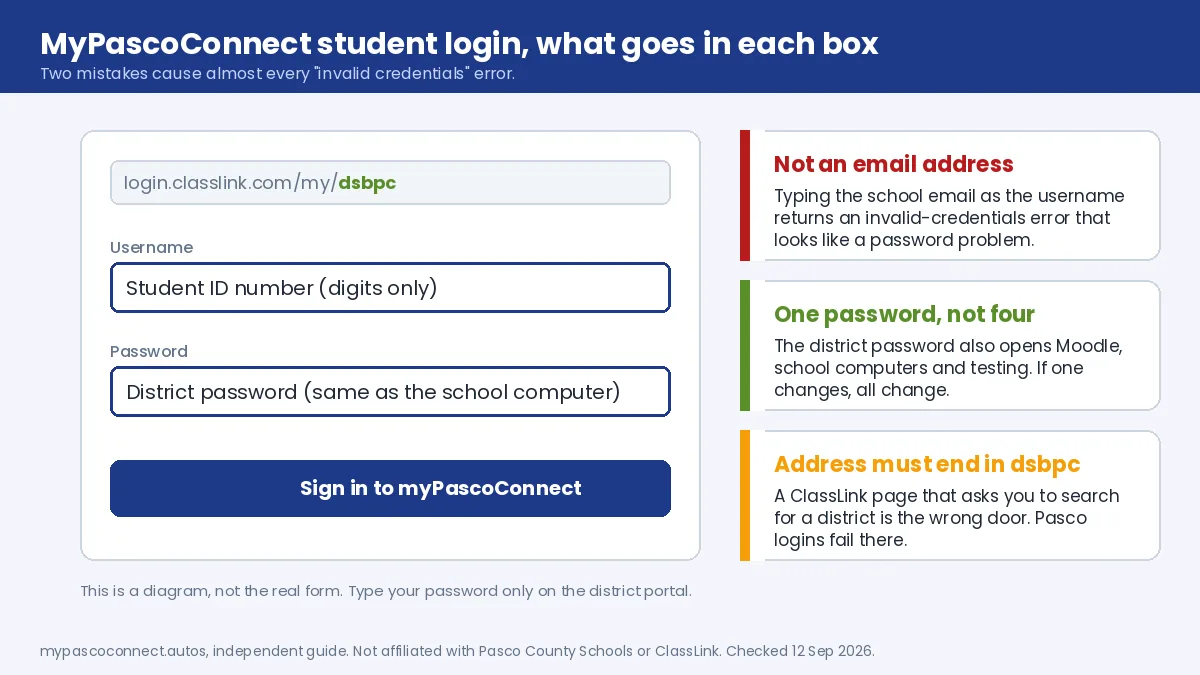
Students sign in to MyPascoConnect, the Pasco County Schools ClassLink launchpad, at login.classlink.com/my/dsbpc. The username is your Pasco student ID number, not an email address. The password is the district-assigned one, the same password that unlocks a school computer. If you don't know it, the teacher of your course can tell you; there is no reset link and no sign-up form.
Username and password
What you sign in with
The student login is the same launchpad everyone else uses. What makes it a student login is the credential: Pasco eSchool's technical support page lists the student sign-in as Pasco Student ID # / District Assigned Password, and the same password covers Moodle, computer login and testing. One password, not four.
Students who type a school email address into the username field get an "invalid credentials" error and assume the password is wrong. It usually isn't. Start with the username.
Why you might not know your own password
If you only ever use a school Chromebook, you may never have typed it. The device signs you in, the launchpad opens, and the password stays invisible for months. The first attempt from a home laptop feels like a lockout. You haven't been locked out; you just never learned it, and the teacher can tell you in a minute.
One more wrinkle: if your password was reset for a testing session, it changed for the launchpad at the same time, and your browser may still be autofilling the old one. Clear the field and type it.
Source: Pasco eSchool, Technical Support
Step by step
How to log in to MyPascoConnect as a student
Open the district launchpad
Use login.classlink.com/my/dsbpc. The dsbpc part is Pasco's district code. Click Sign in to myPascoConnect; the form that asks for your username and password loads on pascosso.pasco.k12.fl.us, the district's own sign-in server. If a ClassLink page asks you to search for your district, you are on the wrong entry point and nothing will work there.
Type your student ID as the username
Digits only. Not your school email, not your name, not a nickname. The student ID is printed on your schedule and on your ID card, and the front office can look it up.
Type your district password
The same password that unlocks a school computer, Moodle and the state testing platform. First-time users usually get a temporary password and are asked to choose a new one on the spot.
Open a tile
Your apps appear as tiles on the LaunchPad. Choose myLearning for Canvas coursework. Tiles open without a second sign-in, so if one asks for a password again, something in the handoff broke rather than the app being locked.
Never type your password anywhere except the district launchpad. This site has no login form and will never ask for your student ID or password. Neither will any legitimate help page.
New students
First-time sign-in and new accounts
A new student's account is created by the district, not at the school on enrolment day, and there is normally a gap of a few days between the first day and the account working. The same happens after a transfer between schools. During that window nothing you type will work and no reset will help, because there is not yet an account to reset. The school office can confirm whether it exists.
Once it does, expect a temporary password and a prompt to set your own. Two things to know before that day:
- On a district Chromebook the launchpad often opens with no prompt at all, because the device already signed you in. Learn the password anyway; you will need it at home.
- Closing a tab is not signing out. On a shared or library machine use the sign-out option in the top-right of the LaunchPad, or the next student inherits your session, gradebook and email.
Younger students may use a QuickCard instead
ClassLink supports badge sign-in, a printed QuickCard with a QR code that the device camera reads, and many elementary classrooms use it because young children cannot reliably type a long district password. If a child has only ever signed in by holding up a card, they may not have a typed password to give you. Whether a school uses badges is a school-level decision, so the classroom teacher is the person to ask.
Once you're in
What you'll see on the launchpad
Your launchpad is built from your school, grade and course enrolments. A classmate in a different course sees different tiles, and a friend at another Pasco school may have resources yours has not licensed.
Tiles are assigned
Drop a course and its tile can disappear. Add one and the tile can take a day or two to show up.
Missing a class app?
That is a request to your teacher, not something to fix in the browser. Cache clearing never adds a tile.
Shared computer
Sign out from the LaunchPad menu. Closing the tab leaves everything open for the next person.
The tile everyone uses most is myLearning, which is Canvas. What else usually appears, and why bookmarking an app directly lands you on a login screen, is on the launchpad apps page.
Still failing
Correct password, still rejected? Four reasons
If you are certain the student ID and password are right and the launchpad still refuses, the account itself is rarely the problem. It is almost always one of these four, and three of them you can fix yourself in under a minute.
| Issue | Cause | Fix |
|---|---|---|
| Login loop, or "account not found" | A personal Google account is already signed in to the browser and the district sign-in hands you back to it | Open the launchpad in a private or incognito window, or sign out of every Google account first. On a shared family laptop this is the usual cause. |
| Credentials rejected on a ClassLink page | You are on the generic ClassLink page, not Pasco's | The address must end in dsbpc. Anything without that suffix is the wrong door. |
| Nothing works, first weeks of term | The account has not been provisioned yet | Wait for provisioning; the school office can confirm whether the account exists. No reset helps yet. |
| Child "has no password" | The class uses QuickCard badge sign-in | Ask the classroom teacher whether a typed password has been issued. |
Before you try anything else: if the account works on a school device but not at home, the credentials are fine and the problem is the home browser or network. Start with an incognito window. More symptoms on the troubleshooting page, and the reset routes on password not working.
Ready to sign in?
This guide is the how-to. The district portal is where you actually sign in, and the only place you should ever type your password.
Open the official portal ↗