
Short answer
The MyPascoConnect launchpad is a screen of app tiles, and your school decides which tiles you get, by school, grade and course enrolment. The common ones across Pasco County Schools are myLearning (Canvas), Office 365 with district email and Teams, and the reading and maths programs the school licenses, such as Lexia and i-Ready. There is no master list that applies to everyone, and a tile a classmate has may never appear for you. That is not a fault. There is no separate apps login: the launchpad sign-in is the apps login, and every tile opens without a second password. If one asks for a login, the sign-on handoff broke.
Common tiles
What usually appears on a Pasco launchpad
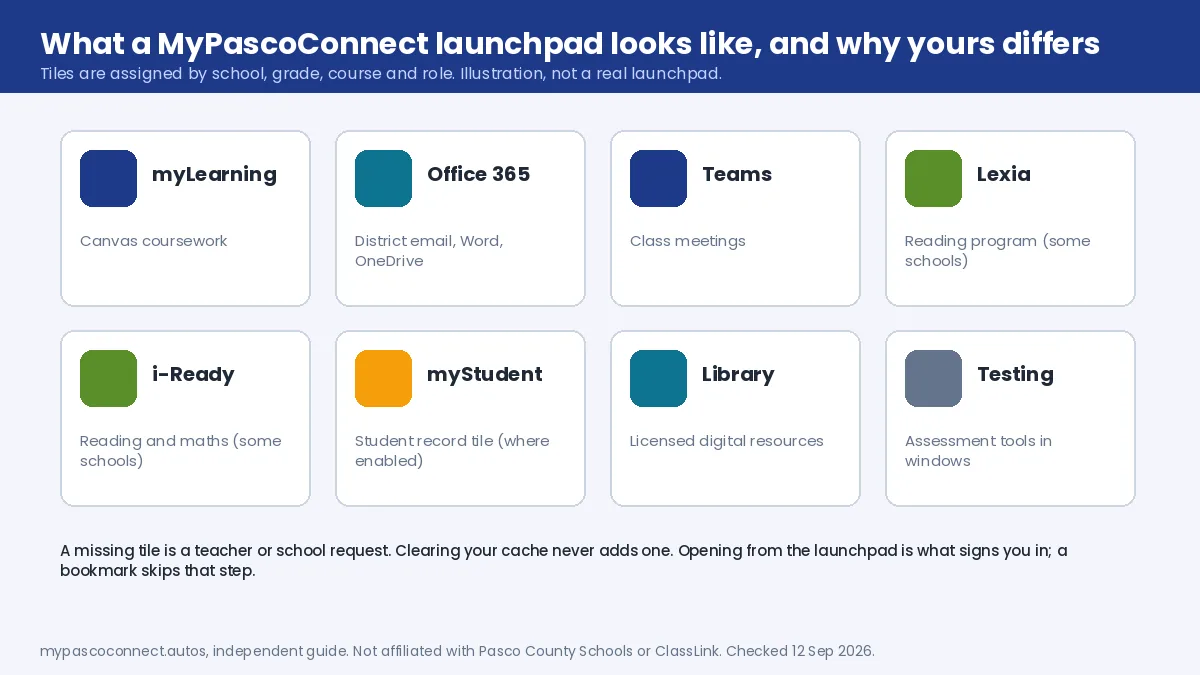
The launchpad is the ClassLink LaunchPad, and ClassLink calls the tile view My Apps. Across Pasco, these are the tiles that turn up most often.
myLearning (Canvas)
Coursework, assignments, modules and grades from the teacher's side. The tile everyone uses most. myLearning guide.
Office 365
Outlook district email, Word, Excel, PowerPoint and OneDrive in the browser, signed in with the district account. This is where your school email lives.
Microsoft Teams
Class conversations and meetings where a teacher has set them up.
Reading programs
Lexia, HMH Into Reading or i-Ready, depending on the school. The district says students reach these through myPascoConnect.
Gradebook and myStudent
Grade entry for staff; a student-facing record tile where the school enables it. Parents use the separate parent portal instead.
Digital resources
Textbook and library platforms the school has licensed, plus testing tools during assessment windows.
Source: Pasco County Schools, Elementary supports (reading programs)
Why yours differs
How launchpad tiles get assigned
Three rules explain nearly every "where did my app go" question. Tiles follow enrolment: drop a course and its tile can disappear, add one and the tile can take a day or two to arrive. Tiles follow role: staff see HR and gradebook-entry tiles a student will never see, on the same launchpad. And tiles follow the school: two Pasco schools can license different resources, so a friend at another school having Lexia does not mean you should.
A missing required app is a teacher or school request, not a browser problem. Clearing your cache will not add a tile. Tell your teacher which app the class needs.
Office 365 here is not Pasco365
Searches for "pasco 365" mostly land on Pasco County government's Office 365, which belongs to a different employer. School district students and staff reach Microsoft 365 through the Office 365 tile on this launchpad, with the district account, and there is no separate Pasco365 login for them.
When a tile misbehaves
How to open an app from MyPascoConnect without a second login
The point of single sign-on is that a tile opens without asking for a password again. When it doesn't, the cause is almost always one of the last three steps.
Sign in to the launchpad
login.classlink.com/my/dsbpc, student ID or employee account, district password. Everything below assumes you are on the LaunchPad screen of tiles.
Click the tile, never a bookmark
Opening from the launchpad is what signs you in to the app. A bookmark straight to the app skips that step and lands on a login screen, which is the most common "my app asks for a password" report.
If it asks you to sign in again, test a private window
A tile that asks for the district login a second time means the handoff broke, usually because a personal Google or Microsoft account is signed in to the same browser. If it works in a private window, sign out of the personal account.
If it opens then signs out, clear that app's cookies only
A stale cached session for one app looks like a lockout. Clear cookies for that app's domain, not the whole browser, then reopen it from the launchpad.
Fixes
App tile problems by symptom
| Issue | Cause | Fix |
|---|---|---|
| Tile asks me to log in again | Handoff broke: a personal Google or Microsoft account in the same browser, or the app opened from a bookmark | Private window test, sign out of the personal account, open from the launchpad. |
| Tile opens then immediately signs out | Stale cached session for that one app | Clear cookies for that app's domain only, reopen from the launchpad. |
| Tile asks for a different username and password | That app is not linked to your district identity | Single sign-on did not fail. Use that app's own credentials, or ask the teacher which login the class uses. |
| Tile is missing | Not assigned to your course, grade, role or school | Ask the teacher or school technology contact. No browser fix adds a tile. |
| Launchpad loads with no tiles at all | Brand-new account still provisioning, or a role with nothing assigned yet | New students and new hires: wait a day or two, then ask the office. |
| Canvas tile fails but everything else works | Canvas (Instructure) issue, not ClassLink | Use the Help link on the Canvas page and check the myLearning guide. |
Ready to sign in?
This guide is the how-to. The district portal is where you actually sign in, and the only place you should ever type your password.
Open the official portal ↗